VM Supreme Login Problems: Can't Sign In? Fix Account Access Errors on Mobile
Forgotten Password and How to Reset It Using Your Registered Mobile or Email
If you've forgotten your VM Supreme login password, the platform provides a straightforward reset process through your registered contact details.
On the VM Supreme mobile site or app:
- Tap the Login button on the home screen
- Below the password field, tap Forgot Password?
- Enter the mobile number or email address you used during registration
- Tap Send Reset Link or Send OTP depending on the option shown
- Check your SMS inbox or email for a six-digit code or reset link (usually arrives within 1–3 minutes)
- If you received an OTP, enter it on the verification screen; if you received an email link, tap it to open the password reset page
- Create a new password—most players use at least 8 characters with a mix of letters and numbers
- Confirm the new password and tap Submit
Common issues during password reset:
- No SMS or email received: Double-check that the mobile number or email matches exactly what you used when you opened your account. If you've changed your SIM or email provider, contact VM Supreme customer support through the live chat button on the homepage.
- Expired reset link: Password reset links typically expire after 15–30 minutes. Request a new one if yours has timed out.
- "Invalid OTP" message: Make sure you're entering the most recent code. If you requested multiple codes, only the latest one will work.
Keep your new password private and avoid reusing passwords from GCash, Maya, or banking apps.
"Account Locked" or "Incorrect Credentials" Error Messages Explained
VM Supreme login errors can appear for several reasons, and the wording of the message often points to the specific cause.
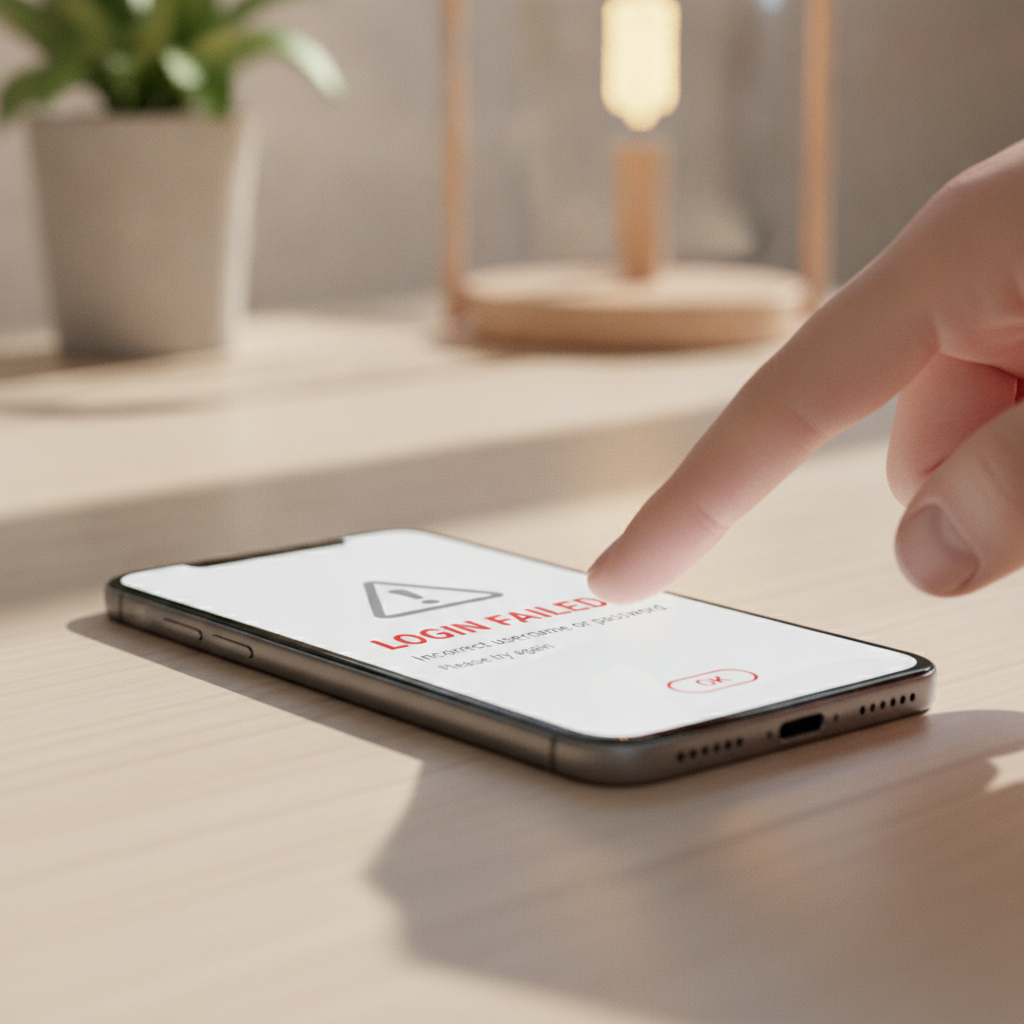
"Incorrect username or password"
This is the most common error. It usually means:
- You've mistyped your registered mobile number, email, or password
- Autocorrect or predictive text changed a character (especially common on Android keyboards)
- You're using an old password from before a recent reset
What to do: Re-enter your login details carefully. Turn off autocorrect temporarily if your keyboard keeps changing what you type. If you're still locked out after two or three attempts, use the password reset process described above.
"Account temporarily locked" or "Too many failed attempts"
VM Supreme applies a temporary security lock after multiple incorrect login attempts—typically five to ten failed tries within a short period.
What to do: Wait 15 to 30 minutes, then try logging in again. Do not keep attempting to log in during the lockout period, as this can extend the timer. If the lock persists beyond an hour, reach out to VM Supreme support via live chat or the contact options listed on the site footer.
"Account suspended—contact support"
This message indicates a hold placed by VM Supreme's compliance or security team. Reasons can include:
- Pending identity verification documents
- Unusual account activity flagged for review
- A request you made to temporarily self-exclude or limit your account
What to do: Open the live chat feature on the VM Supreme homepage and provide your registered mobile number or email. Support will explain the hold and tell you what documents or steps are needed to restore access.
Clearing Cache and Cookies on Android Chrome and Safari iOS
Stored browser data sometimes conflicts with VM Supreme's updated login scripts, especially after the platform releases app or website updates. Clearing cache and cookies can resolve persistent "session expired" or redirect errors.
On Android using Chrome:
- Open the Chrome app
- Tap the three-dot menu icon (top-right corner)
- Select Settings > Privacy and security > Clear browsing data
- Under the Basic tab, tick Cookies and site data and Cached images and files
- Leave Browsing history unchecked unless you want to clear that too
- Tap Clear data
- Close Chrome completely (swipe it away from the recent-apps screen), then reopen and navigate to VM Supreme
On iPhone or iPad using Safari:
- Open the Settings app (not Safari itself)
- Scroll down and tap Safari
- Scroll to Privacy & Security and tap Clear History and Website Data
- Confirm by tapping Clear History and Data again
- Return to Safari and reload the VM Supreme page
If you use the VM Supreme APK on Android:
- Go to Settings > Apps > VM Supreme (or whatever name the APK installed under)
- Tap Storage
- Tap Clear Cache first, then try logging in
- If the problem continues, tap Clear Data (note: this will log you out and may remove saved preferences)
After clearing cache or data, you'll need to re-enter your login credentials. Saved passwords in your browser or device keychain can speed this up.
When You Need to Verify Your Identity Before Logging In Again
VM Supreme may prompt you to complete or update identity verification before granting account access. This typically happens when:
- You're logging in from a new device or IP address for the first time
- You've requested a withdrawal larger than your previous cashouts
- Your account has been flagged for routine KYC (know-your-customer) compliance checks
- Your registered mobile number or email has changed and you updated it through support
What VM Supreme usually asks for:
- A clear photo or scan of a valid government-issued ID: Philippine passport, driver's license, UMID, Postal ID, or PhilHealth ID
- A selfie holding your ID next to your face
- Proof of address dated within the last three months: utility bill, bank statement, or barangay certificate with your name and current address
How to submit documents:
- Log in as far as the system allows (you may reach a dashboard but see a "verify now" banner)
- Tap Verify Account or Upload Documents
- Follow the on-screen prompts to photograph or upload each file (JPEG or PNG under 5 MB each is typical)
- Submit and wait for email or SMS confirmation—verification usually takes 24 to 72 hours
If verification is delaying your login:
- Make sure photos are clear, with all four corners of the ID visible and text readable
- Selfies should show your full face without sunglasses, hats, or heavy filters
- Proof-of-address documents must display your name and address exactly as registered on VM Supreme
Once approved, you'll receive a confirmation message and can log in normally. Keep a copy of your submitted documents on your phone in case you need to reference them with support.
21+ Reminder and Responsible Gambling Note
VM Supreme is for players aged 21 and above only. The platform is designed for entertainment, and all betting and gaming should be treated as a leisure activity with money you can afford to lose.
If you're experiencing login problems because you've set cooling-off or self-exclusion limits on your account, respect those timeframes. They exist to help you stay in control.
Practical responsible-gambling tips:
- Set a PHP budget before you log in each session and stick to it
- Use GCash or Maya transaction limits to cap your weekly deposits
- Take breaks—if you're frustrated by login errors, step away and return with a clear head
- Know where to get help: PCSO and local support groups offer confidential advice if gambling is affecting your finances or well-being
VM Supreme provides account tools such as deposit limits and session reminders. You can access these from the Responsible Gaming or My Account section once logged in. If you need to pause or close your account, contact support rather than trying to bypass login restrictions.
Final checklist for VM Supreme login problems:
- Reset your password if you've forgotten it or suspect it's wrong
- Wait out temporary locks after multiple failed attempts
- Clear cache and cookies on your browser or app
- Submit ID verification if prompted by the platform
- Contact live chat support for account suspensions or issues lasting beyond a few hours
Most VM Supreme login issues resolve within minutes once you identify the specific error message and follow the matching fix. Keep your registered email and mobile number current, and save your password securely so you can sign in smoothly on your Android or iOS device whenever you're ready to play or withdraw.